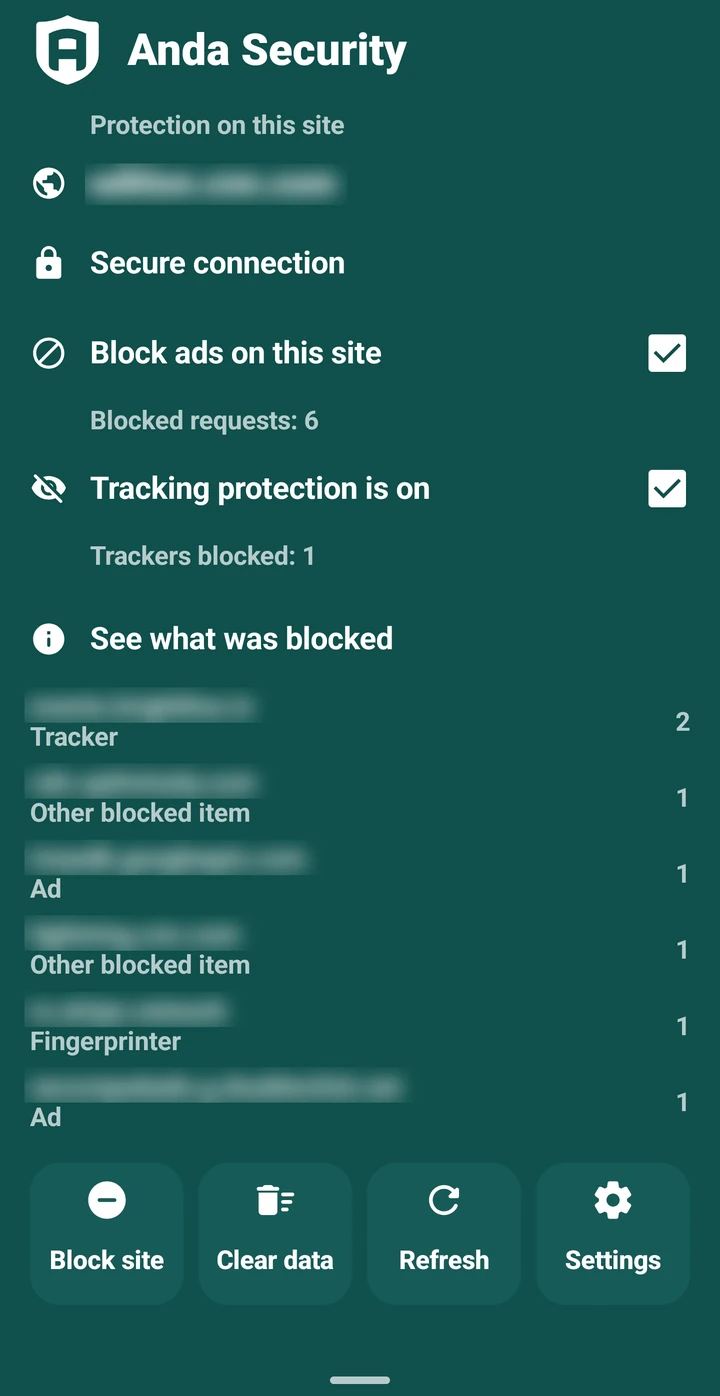
Everything stays on the device, and you can see and clear it.
-
Local, no account
Bookmarks, history, notes, settings and passwords live in the browser profile on your device. There is no account, no sync and no telemetry.
-
Users
Multiple profiles on one device — on Android too! Each has its own history, cookies, passwords and settings. You switch between them in the menu, and each profile can have its own password if you want; another profile's password can only be changed with the Lock master password. If someone forgets theirs, “I forgot my password” on the “Who's browsing?” screen gives a new one with the profile's recovery code, or with AndaLock if it is set up. There is a guest mode too, and the app starts with the user you used last. Everything stays on your device: no server, no account. Users need Android 11 or later; on Android 8 to 10 the browser runs with a single profile.
-
Who's browsing? Unlock and lock screen
If you turn it on, the browser asks who is using it at start-up and after Quit; Quit is a fresh start, and the guest's data is deleted as the guest's setting says. The lock screen shows the name and profile picture with the password field below; the Sign in button or Enter lets you in, and "Other user" takes you back to the picker. You can also unlock with a fingerprint or other strong biometrics; the password always stays, the lock's administrator can forbid it, and the guest has none. The background of the picker and the lock screen can be set separately for light and dark mode and is shared by all users; any of them can change it, the guest cannot.
-
Profile picture, name, quick switching
Every profile has its own name, which you can change, and no two profiles can share one; on a new installation the first is called "User 1". For the profile picture, choose a letter, one of 12 symbols or a picture of your own; it shows on the lock screen, in the picker and in the lists. Switching users happens within one window with a cross-fade, and the switcher shows who you are switching to.
-
Passwords
The browser offers to save passwords and fills them in. It has its own encrypted password store, and you can also fill with the system password manager (always off in private tabs). Under the lock, opening the saved passwords asks for the password.
-
Anda as the password manager for other apps
Choose Anda as the autofill service in the phone's settings, and it offers its saved passwords when you sign in to other apps. It needs a screen lock and always asks you to unlock before filling, with the master password if “Open saved passwords” is locked; then it does not ask again for 5 minutes. The first time, it asks before linking an app to an account. From Android 14 it can also be one of the system's password providers. It does not fill in private mode or for a guest, does not save passwords from other apps yet, does not fill on websites in other browsers, and has no passkeys.
-
Password manager
Saved passwords have a page of their own. You can add a password by hand, with an encrypted note. When you sign up somewhere, the browser suggests a strong password, and it flags weak or reused ones; this check runs only on the device and sends nothing. Checking for leaked passwords is a separate button, described below. You can bring your passwords over from another browser in a CSV file and export them to CSV too, notes included. After an import it warns you that the passwords in the file are readable and offers to delete it; even a large file comes in quickly.
-
Check for leaked passwords
On the Saved passwords page, one button checks whether any of your passwords appears in a known data breach (Have I Been Pwned). Nothing is sent until you press it, and the first time it tells you what happens: your passwords stay on the device, only the first 5 characters of each password's SHA-1 hash go to the service, and the comparison happens on your phone. A password that is found gets a “Leaked” mark and advice to change it. In Settings you can hide the button.
-
Managing bookmarks
Import and export bookmarks in the standard HTML format, from and to other browsers. The whole folder tree and the tags come along, and Firefox's top folders (such as the Bookmarks Toolbar) become ordinary folders; the reading list travels in a marked folder of its own. Sort the list by name, newest or oldest. Deleting can be undone, in the list and from the star in the address bar too. A bookmark can have a nickname: type the short word into the address bar and the page opens straight away. Under the lock, the HTML import and export ask you to unlock first; a fingerprint is enough.
-
Clear data
Clear what you choose, when you choose; also automatically every time you quit.
-
Site permissions
Camera, microphone, location, notifications and the rest, per site, with a list of all sites you have decided about. Under the lock, when a site asks for a permission, Allow needs unlocking (the phone's own unlock is enough), and Deny is always free.
-
Downloads
You choose the download folder; downloads keep going in the background with a notification, and a bar shows their progress. Private downloads are listed only while the private session lasts, though the files stay.
-
Export, import, reset
Save your settings, shortcuts and notes to a file, bring them back on a new phone, or start fresh. Under the lock, all three ask for the password.